Understand how an IPTV playlist is structured, what M3U metadata means, how to test stream URLs, and how to clean a channel list before loading it into a player.
HLS - Browser M3U8 Player
Online video
Use the controls above after loading a stream. Unavailable options explain what is missing.
No HLS events yet. Press Play or choose a demo stream to start diagnostics.
Example M3U8 Links (Click to Use)
1
Tears of Steelhttps://demo.unified-streaming.com/k8s/features/stable/video/tears-of-steel/tears-of-steel.ism/.m3u8
Website embed
Embed Player on Your Website
Generate a lightweight iframe snippet for a public HLS URL. The generated code points to m3u8-player.app and gives publishers, documentation teams, and developers a quick way to share an m3u8 player preview from any website, help center, or internal dashboard.
Responsive 16:9 iframe layout for articles and docs.
URL encoding keeps signed query strings intact.
Useful for demos, support notes, stream QA, and customer handoff.
iframe code generated.
Share this stream
Generate a QR code image that opens this stream in M3U8 Player.
What is an IPTV playlist?
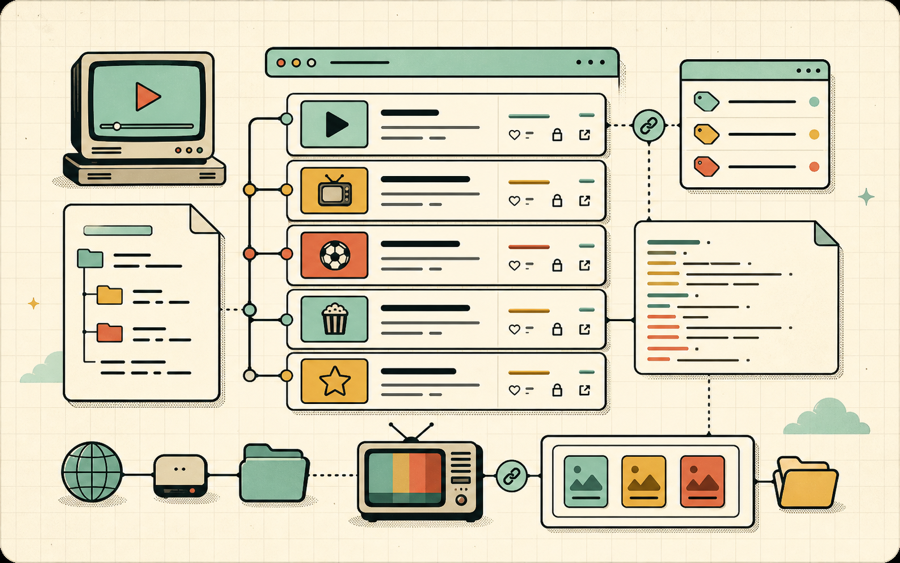
An IPTV playlist is usually an M3U or M3U8 file that lists streaming channels, names, groups, logos, and HTTP video URLs. A good IPTV playlist is organized, current, and easy to test.
M3U
Text format
An IPTV playlist is plain text, so you can inspect channel rows, stream URLs, and metadata before using a player.
TAG
Channel metadata
An IPTV playlist often uses EXTINF attributes such as tvg-id, tvg-name, tvg-logo, and group-title.
HLS
Stream URLs
Many IPTV playlist entries point to HLS M3U8 streams, but some entries can also point to other HTTP media formats.
FIX
Maintenance
A reliable IPTV playlist needs duplicate cleanup, invalid link checks, and periodic export after editing.
How an IPTV playlist is structured
An IPTV playlist starts with a simple idea: one readable file can describe many playable streams. The top line is commonly #EXTM3U. Each channel is often described by an #EXTINF line followed by a stream URL. The #EXTINF line may include the display name, the group, a TV guide identifier, a logo URL, and other attributes that a player can use to organize the interface. When an IPTV playlist is well written, a user can open a player and quickly browse channels by category instead of scrolling through a raw list of links.
The same IPTV playlist can feel very different depending on metadata quality. A clean list might show a channel name, a logo, a region, and a group like News or Movies. A messy list might show duplicate names, blank groups, expired stream URLs, and missing logos. That is why testing and cleanup matter. Before you trust an IPTV playlist, you should inspect the text, load a few streams, check for duplicate URLs, and export a cleaned copy that keeps the entries you actually need.
Open the file.Review the IPTV playlist as plain text before importing it anywhere.
Check metadata.Look for meaningful channel names, group-title values, and tvg fields.
Test streams.Paste important URLs into the player and confirm the stream loads.
Clean and export.Remove duplicates and export the IPTV playlist as a new M3U file.
Why IPTV playlist quality matters
A player can only be as useful as the playlist behind it. A strong IPTV playlist reduces failed playback, duplicated channels, and confusing navigation.
Many people treat an IPTV playlist as a finished product, but it is better to treat it as a living data source. Streams move, tokens expire, CDNs change rules, channel owners rename feeds, and public test links disappear. When the IPTV playlist is not maintained, the player interface becomes noisy. Users see channels that fail, duplicate entries that point to the same source, and groups that no longer match the content. A cleaner IPTV playlist saves time because it removes uncertainty before playback.
The first quality signal is URL validity. An IPTV playlist may contain links that return 200, 403, 404, timeout, or browser CORS errors. A 403 can mean the source is private, token-protected, geo-restricted, or temporarily blocked. A 404 usually means the path has changed or the stream was removed. A CORS error means the browser is not allowed to read the resource from this website, even if a native player may still open it. Testing a sample of your IPTV playlist helps separate bad links from browser policy limits.
The second quality signal is metadata consistency. If an IPTV playlist includes group-title values, it should use predictable naming. Sports, News, Movies, Local, Radio, and Testing are easier to browse than several near-duplicates like Sport, Sports HD, Live Sport, and SPORTS. The same principle applies to tvg-id and tvg-name. A clean IPTV playlist helps electronic program guide tools match channels correctly, and it helps users find a channel without guessing.
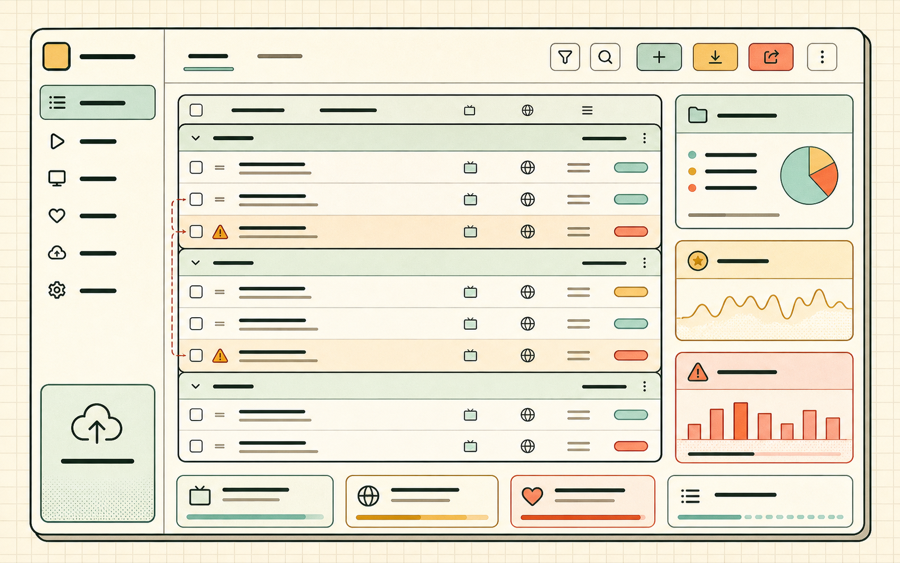
The third quality signal is duplication. Duplicate stream URLs often appear after combining several lists. Sometimes duplicates are useful because the same feed should appear under different regional names. More often, duplicates are accidental. They slow down search, inflate channel counts, and make favorites harder to manage. A playlist manager can identify duplicate URLs and let you keep the first useful label while removing extra rows.
Security and legality also matter. An IPTV playlist should contain streams that you are authorized to access. A tool can help you test and organize a file, but it should not be used to bypass rights, tokens, or regional restrictions. The best workflow is to use public demo streams, your own streams, or streams from providers that grant access. A well maintained IPTV playlist is not just cleaner; it is also easier to document and hand off to support, engineering, or household users.
IPTV playlist fields explained
These fields appear often in an IPTV playlist and affect how players display the channel list.
Field
Purpose
Cleanup tip
#EXTM3U
Marks the file as an extended M3U playlist.
Keep it as the first line of the IPTV playlist.
#EXTINF
Describes one channel before the URL line.
Make sure every useful stream has a clear display name.
group-title
Places a channel into a category.
Use consistent group names to make the IPTV playlist easy to browse.
tvg-id
Helps EPG systems match the channel.
Keep IDs stable when you know the correct guide identifier.
tvg-logo
Provides a logo image for the channel.
Remove broken logo URLs if they slow down player loading.
IPTV playlist FAQ
Quick answers for common IPTV playlist questions.
Is an IPTV playlist the same as an M3U file?
Usually yes. Most IPTV playlist files use M3U or M3U8 text with channel metadata and stream URLs.
Can I test an IPTV playlist in the browser?
You can test individual HLS links in the player and use the playlist manager to inspect a full IPTV playlist.
Why does an IPTV playlist work in one app but not another?
Different apps support different codecs, CORS behavior, token handling, and redirect rules.
How often should I clean an IPTV playlist?
Clean an IPTV playlist whenever you merge sources, see many failed channels, or prepare a file for a new device.
Can I create an IPTV playlist manually?
Yes. Because an IPTV playlist is plain text, you can write one manually and then test each URL before sharing it.